In this article
Introduction
Equipment QR codes in MOT Juice are designed to make accessing your equipment details faster and more practical, especially when you’re working on the workshop floor.
Each QR code is linked to a specific piece of equipment in your account. When you scan it using your phone, it takes you directly to that equipment record, removing the need to log in and search through menus to find the correct item.
This means you can access all the equipment information and documentation instantly, which helps save time and reduces the risk of losing important documents.
How QR codes help in day-to-day use
QR codes are particularly useful when you’re physically next to the equipment. Instead of going back to a computer, you can scan the code and take action immediately.
For example, you might use a QR code to:
- Check whether equipment is in or out of calibration
- View current previous calibration records and certificates
- Access the equipment manual
- View the complete calibration history
How to generate equipment QR codes
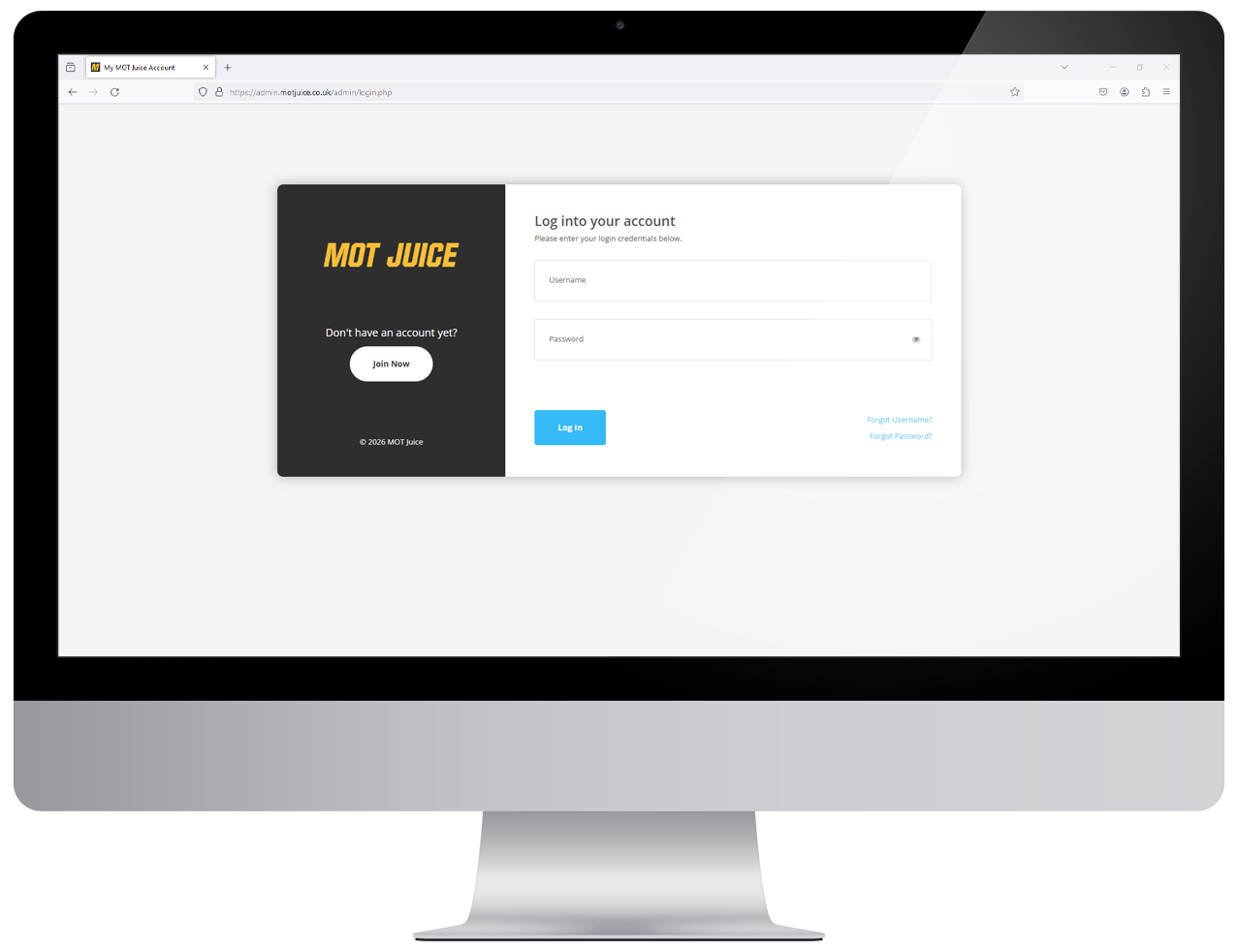
Step 1: Log into your MOT Juice accountNavigate to the MOT Juice login page here: https://admin.motjuice.co.uk/admin, and then enter your MOT Juice login details to access your account.
Step 2: Navigate to MOT equipment
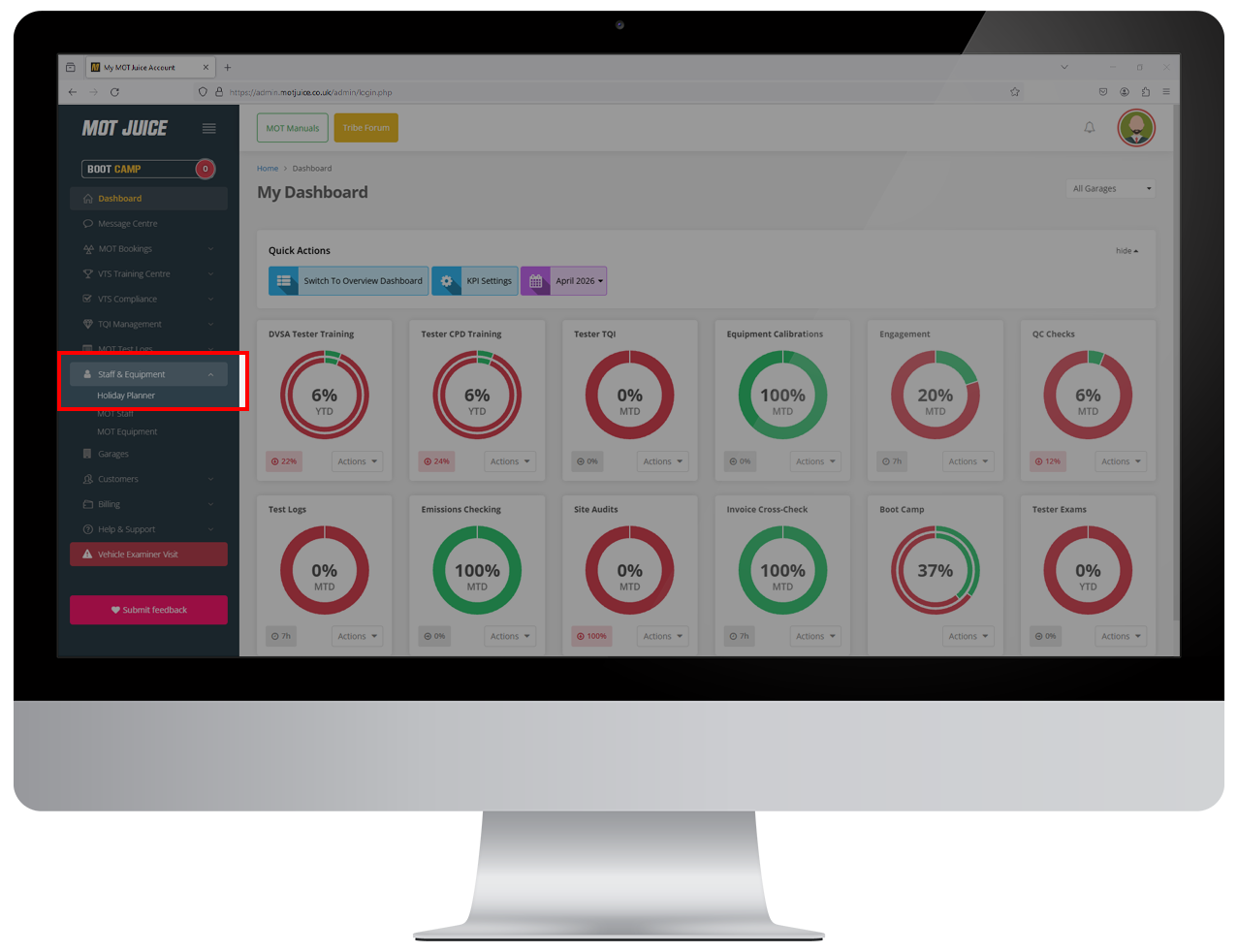
After you have logged in and are on your dashboard, using the left hand sidebar menu, open the 'Staff & Equipment' menu item and then click on 'MOT Equipment'.
Step 3: Click on the 3-dots
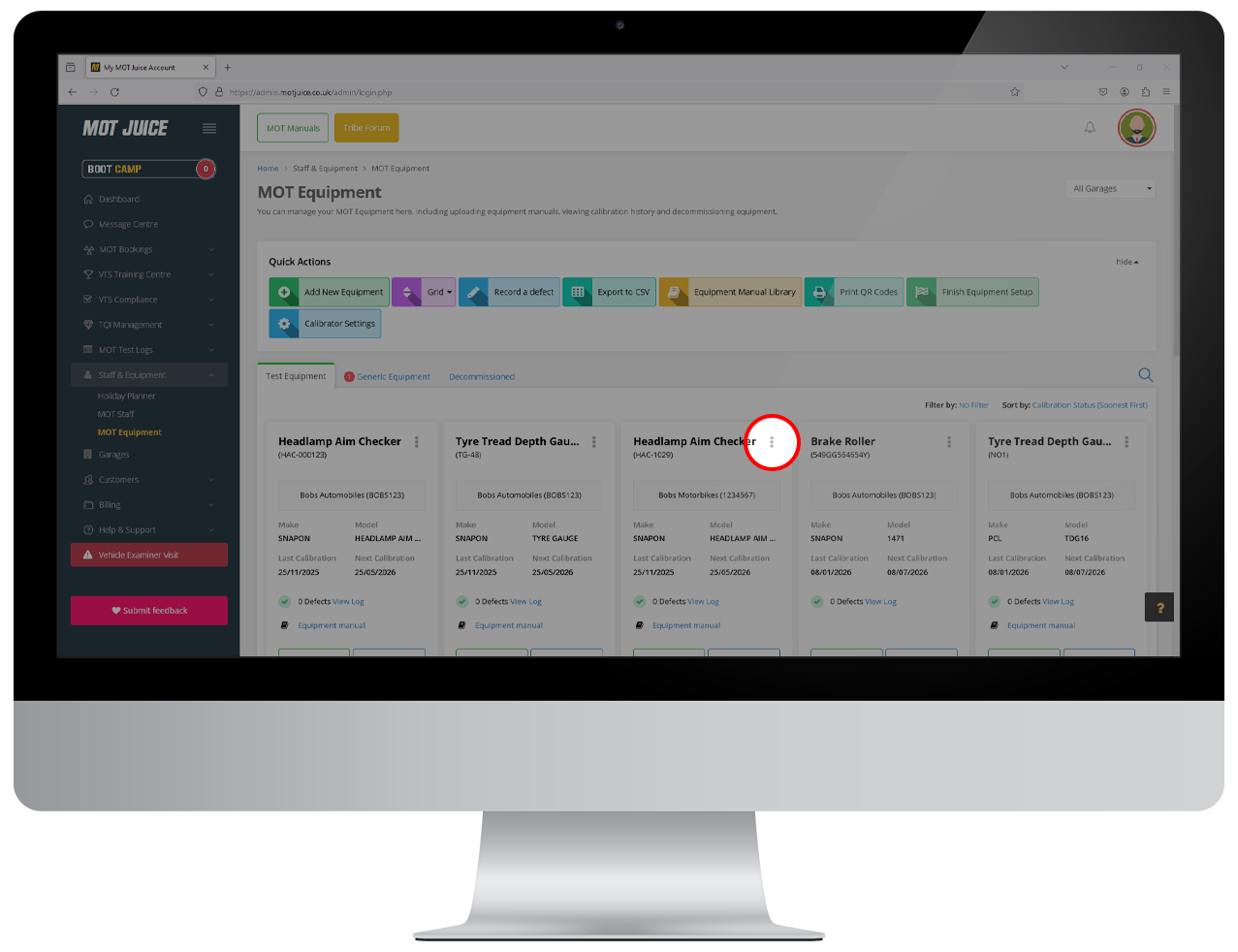
Find the piece of equipment that you want to generate a QR code for, and click on the 3-dots in the top right of the equipment card.
Step 4: Click to generate a QR code
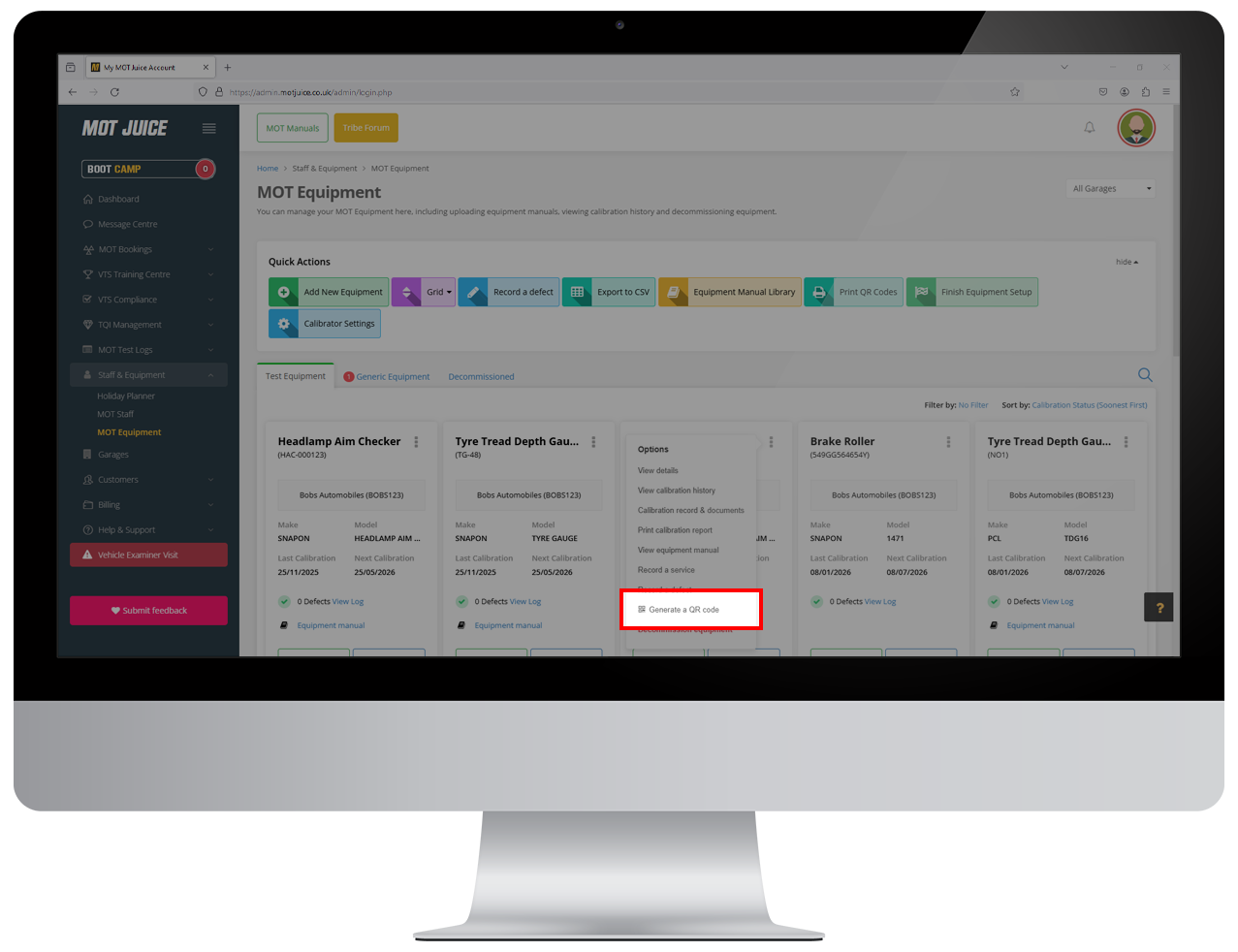
In the menu that opens up for the equipment, near the bottom of the list will be an item for 'Generate QR Code'. Click on this.
Step 5: Click to print
In the pop up window that appears, click on the green 'Print QR Code' button. This will give you a choice of 3 size options:
- Small (30mm x 30mm)
- Medium (50mm x 50mm)
- Large (100mm x 100mm)
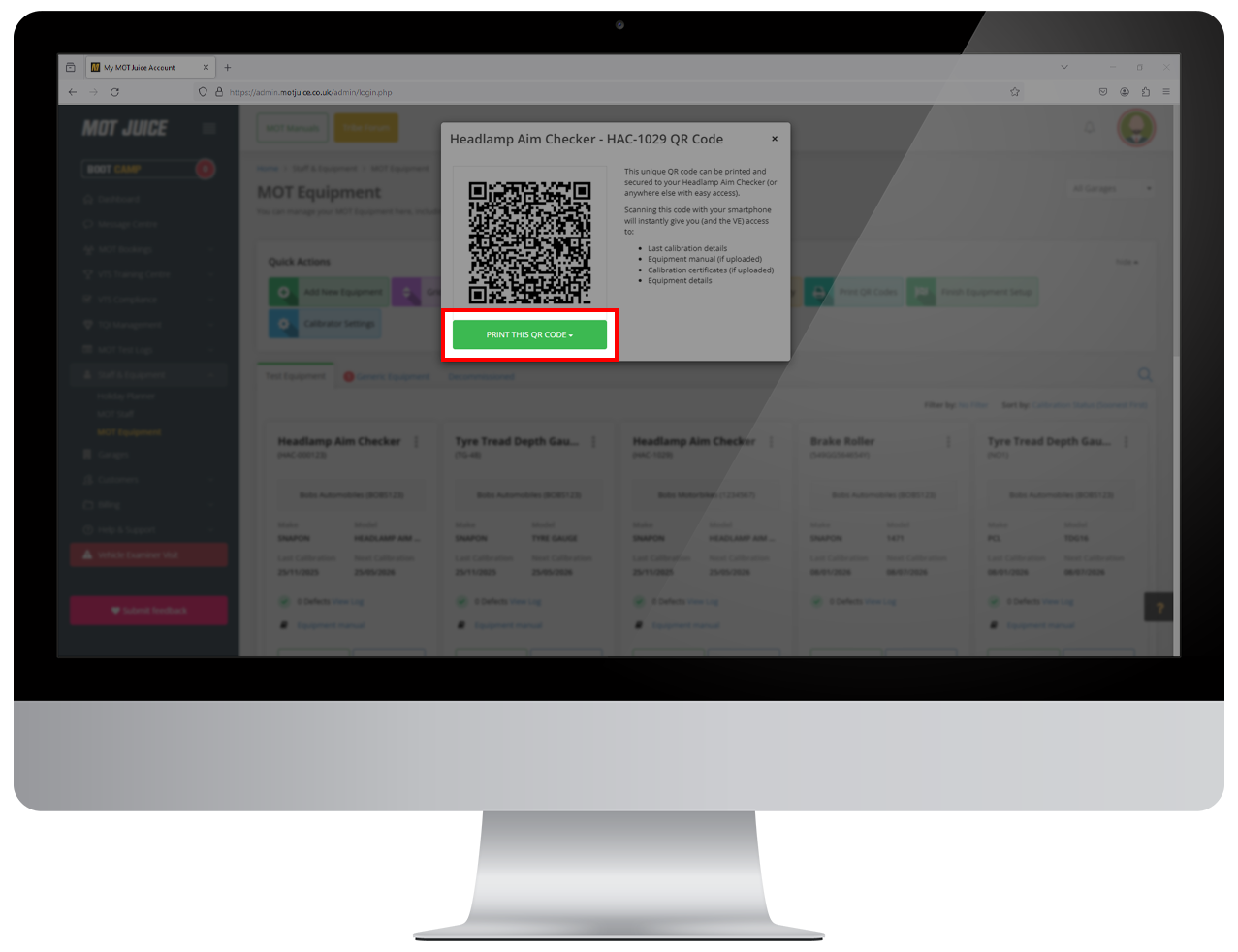
If you want to print multiple equipment QR codes on a single page, you can do this by following the steps below:
Step 6: Click print QR codes
When looking at your MOT Equipment overview page, from the Quick Actions bar, click on the Print QR Codes button.
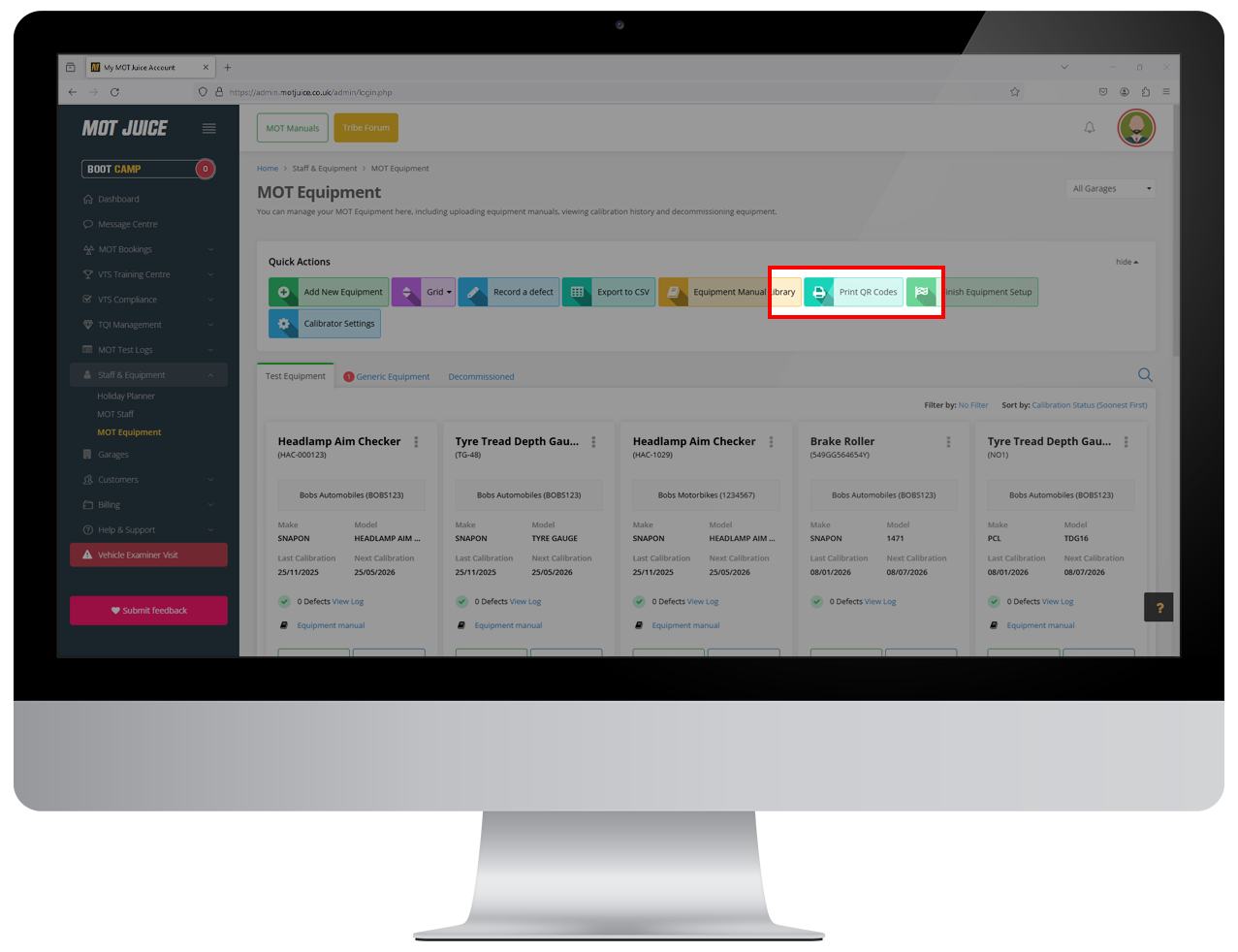
Step 7: Select equipment and print
In the pop up window that appears, select the equipment that you want to generate a QR code for, and then click print. You will get 1 QR code per equipment, with up to 6 per sheet of paper.
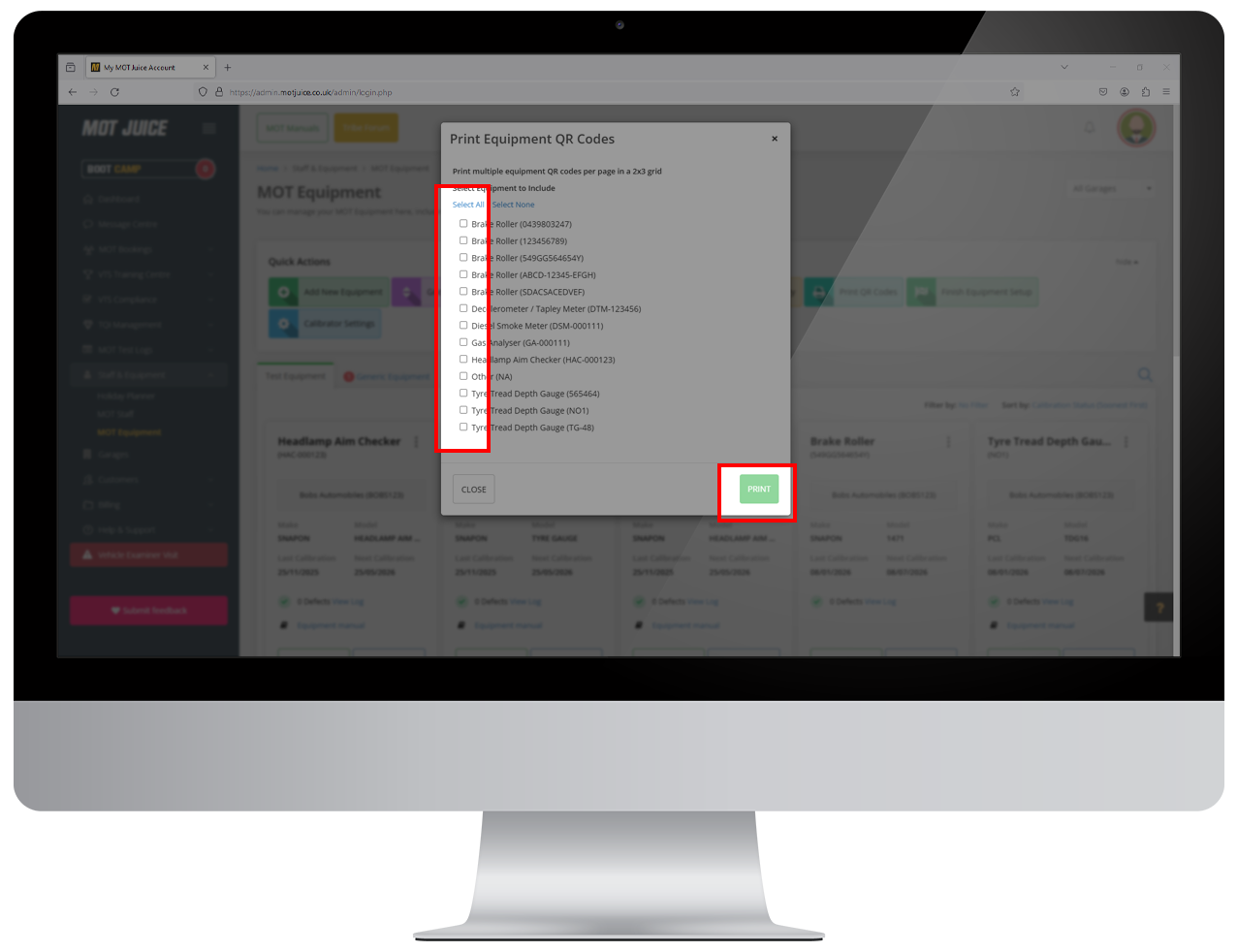
That's it! That's how easy it is to generate QR codes for all your MOT equipment. After you have printed them out, simply stick them onto your equipment and let the MOT Juice system do the rest.
There's no need to keep generating QR codes for your equipment. Your QR code will always work for your equipment and you never have to print new ones any time you make changes. The video above guides you through how to generate QR codes for your equipment.
Why using QR codes is valuable
Using QR codes removes unnecessary steps and makes it much easier to access equipment records quickly.
Instead of storing important documentation in locked filing cabinets, have them covered in oily fingerprints, or risk them going missing, QR codes allow everyone to access important data digitally simply from scanning the QR code with their mobile device camera.
What's better, during a DVSA site inspection, when the VE requests information and documents relating to your equipment, they can simply scan the QR codes and have instant access to everything they need.
Helpful tip
Place 1 or 2 QR code labels somewhere clearly visible on each piece of equipment. This makes it easier for your team to scan and use them whenever needed, especially during calibrations or inspections.
If you need help setting up or using equipment QR codes, we’re here to support you.