Introduction
MOT Juice is a hierarchical based system, which means there's various account levels, each aimed to complete different compliance activities based on your role within your MOT business. The system hierarchy is:
- Client level user
- Garage level user
- Tester level user
These are the people at the top of the business, managing any/all sites within the MOT operation typically your AEDM's.
Garage user
These are the people at site-level responsible for keeping things running smoothly - typically your Site Managers, Site Admins etc.
Tester user
These are the individual MOT testers on the ground, responsible for the day-to-day MOT testing.
It is entirely possible that an individual covers multiple roles and account levels, and has been given more than 1 MOT Juice account. In this case, it's easier to use the MOT Juice account switcher than it is to log out of 1 account and into another.
In this article, we'll guide you through the steps on how to link multiple accounts together, and how to use the account switcher for easy account access.
Linking multiple accounts
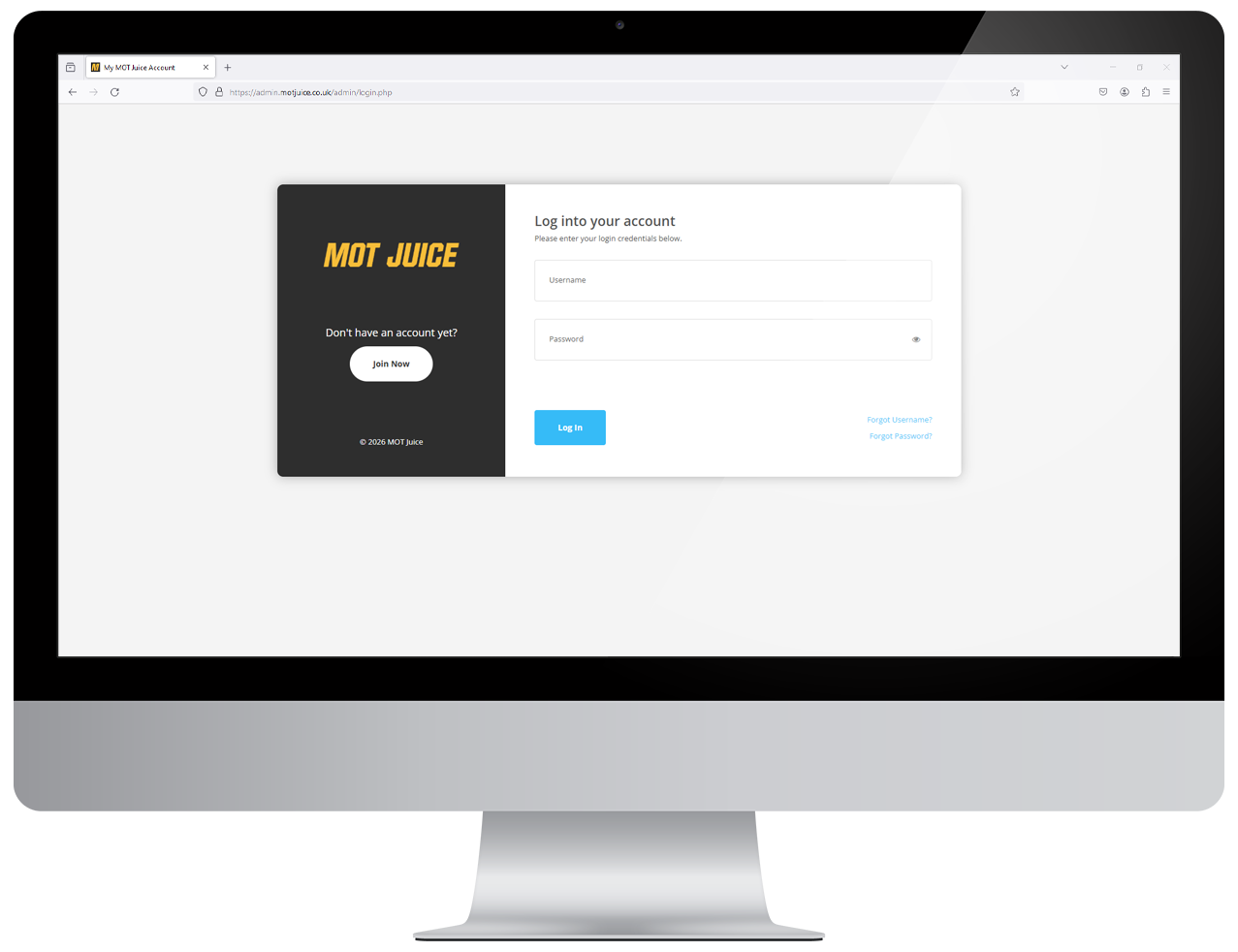
Step 1: Log into your MOT Juice accountNavigate to the MOT Juice login page here: https://admin.motjuice.co.uk/admin, and then enter your MOT Juice login details to access your account.
Step 2: Access your user menu
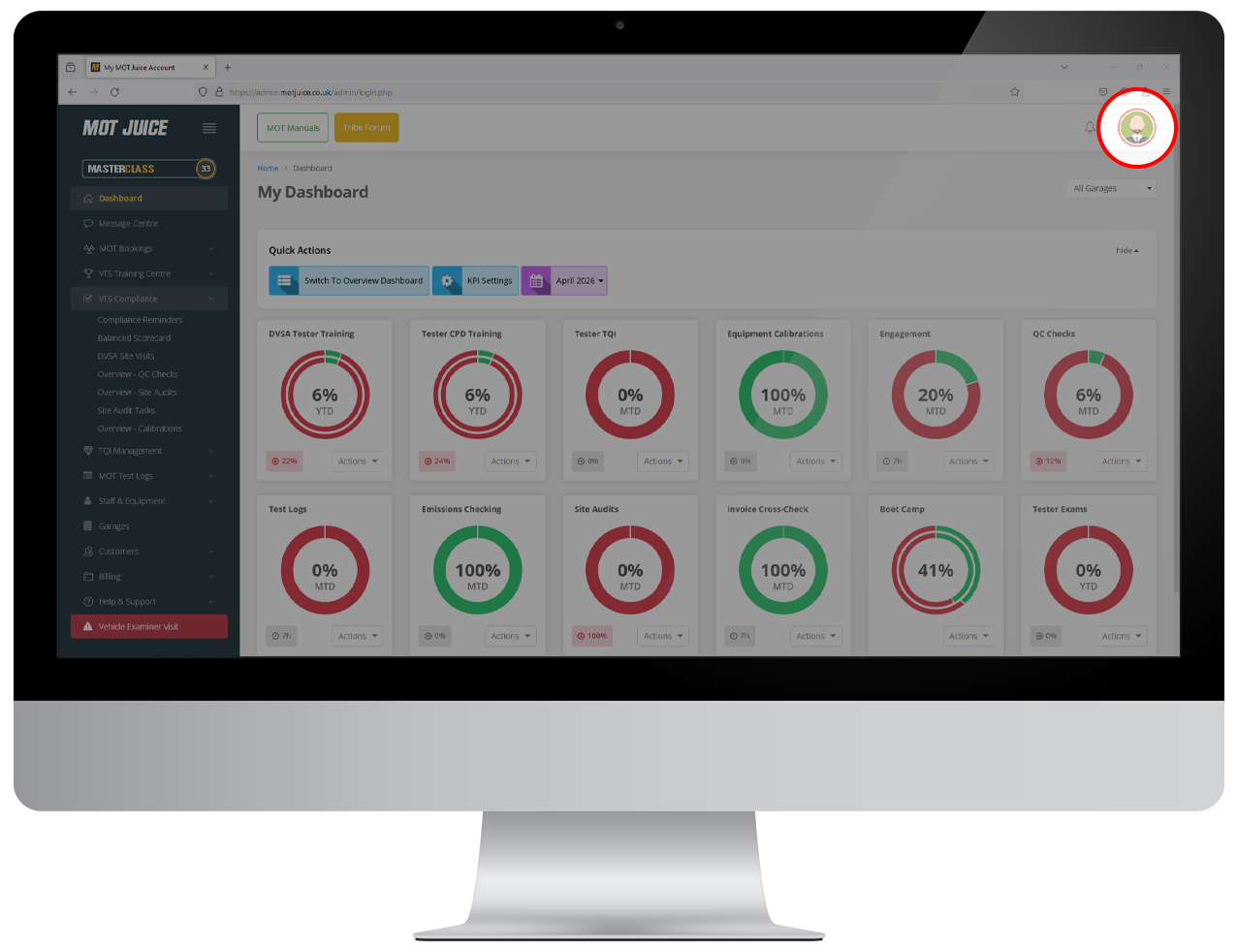
Hover over your user icon in the top right of the screen. This will show your user menu with a handful of options.
Step 3: Access the Switch User menu
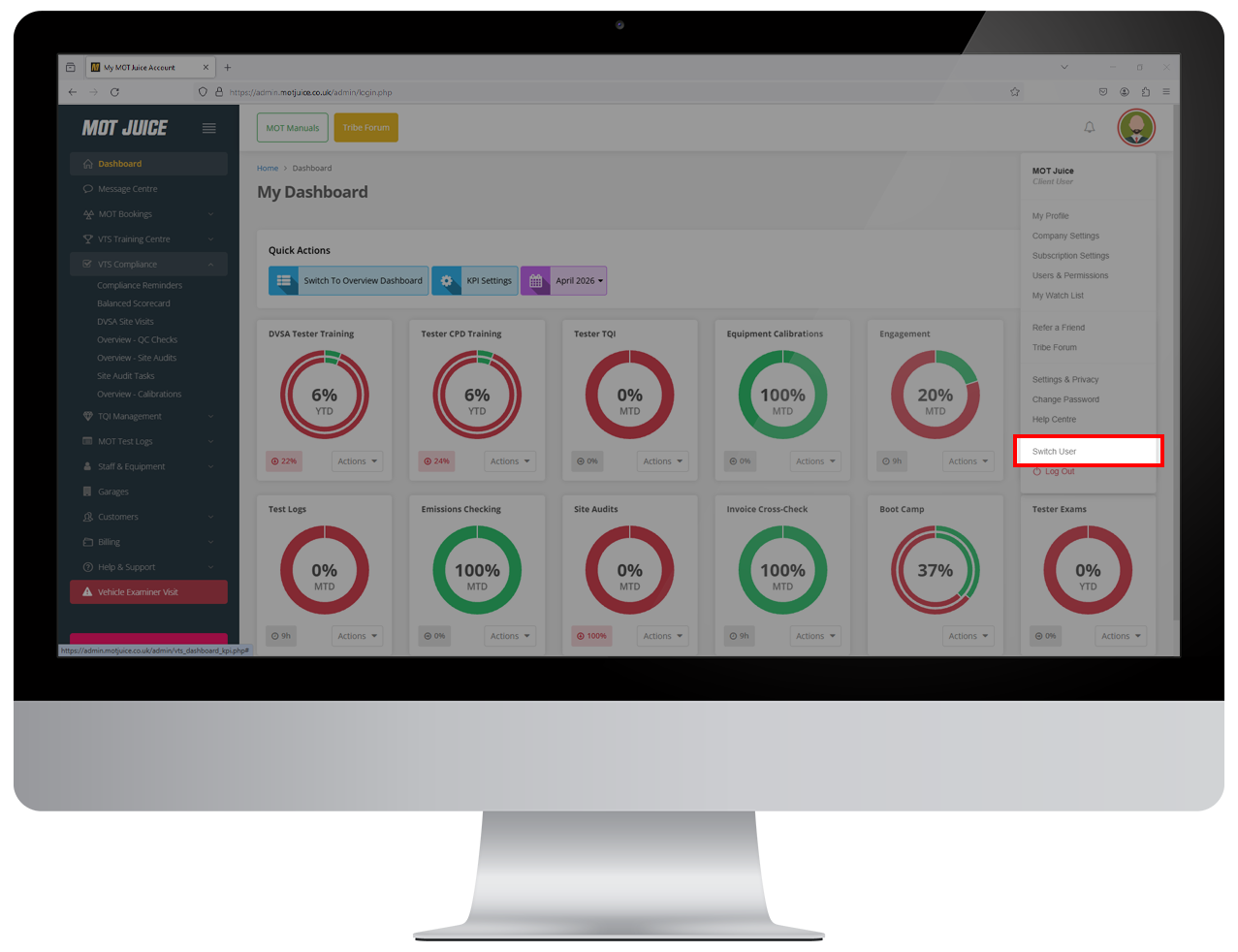
From the user menu, near the bottom find the 'Switch User' item and click on it.
Step 4: Link a user
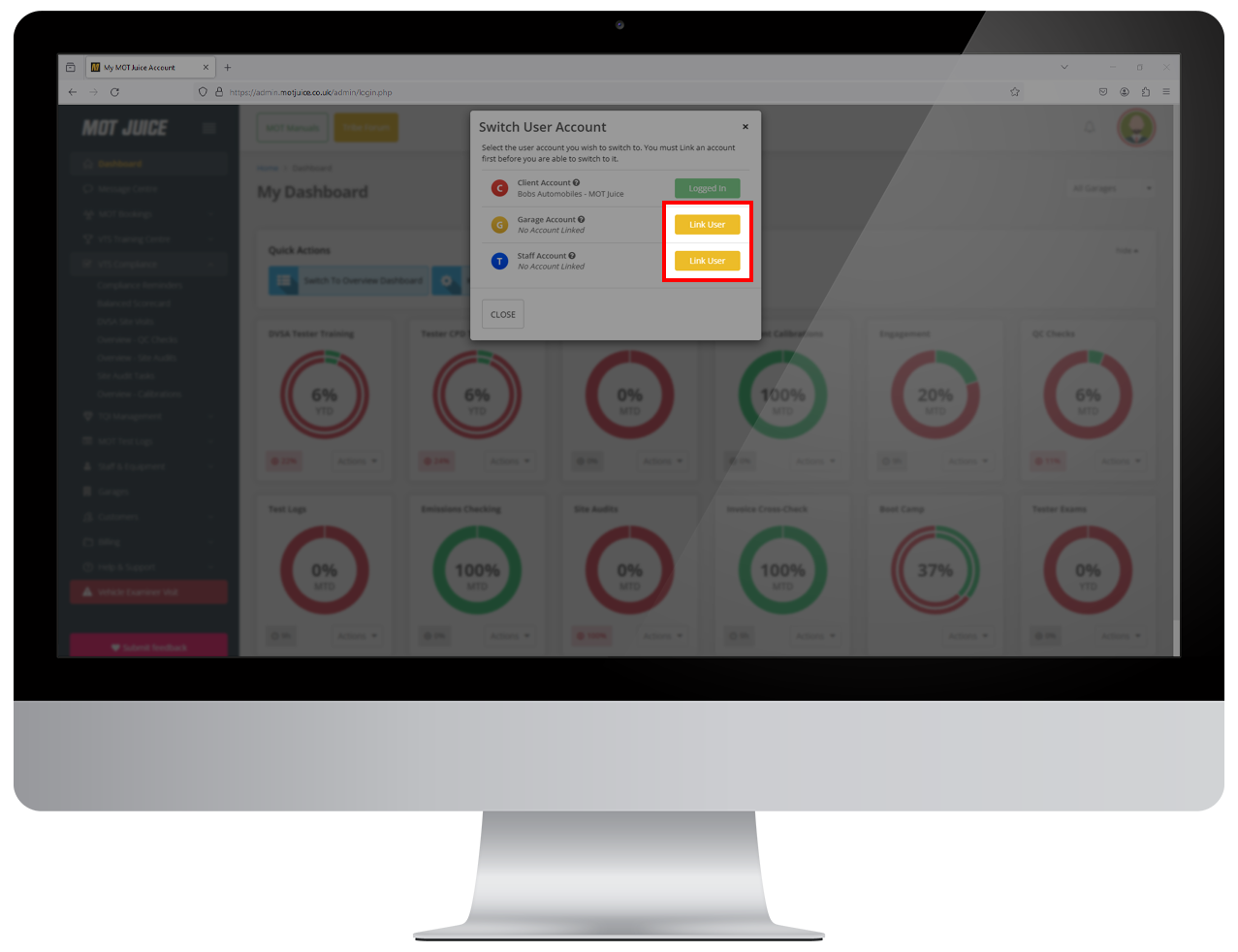
In the pop up window that appears, you'll see you can link to a Client, Garage, or Tester user. Select the account level you wish to link to and click 'Link User'.
Step 5: User credentials
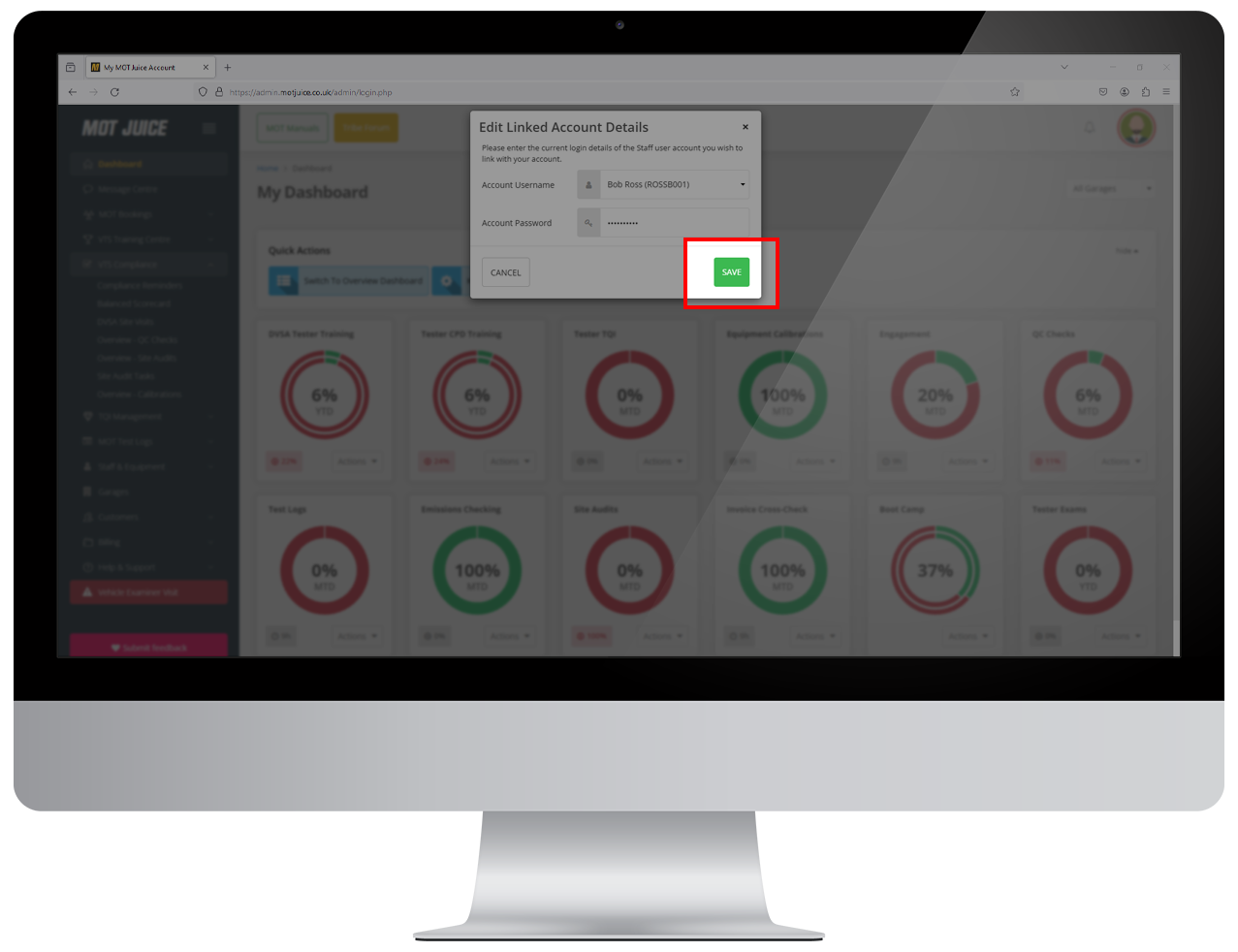
In the next pop up window, you'll have to enter the username and password of the account you want to link to. Once you have entered the username and password, click 'Save'.
Step 6: Switch user
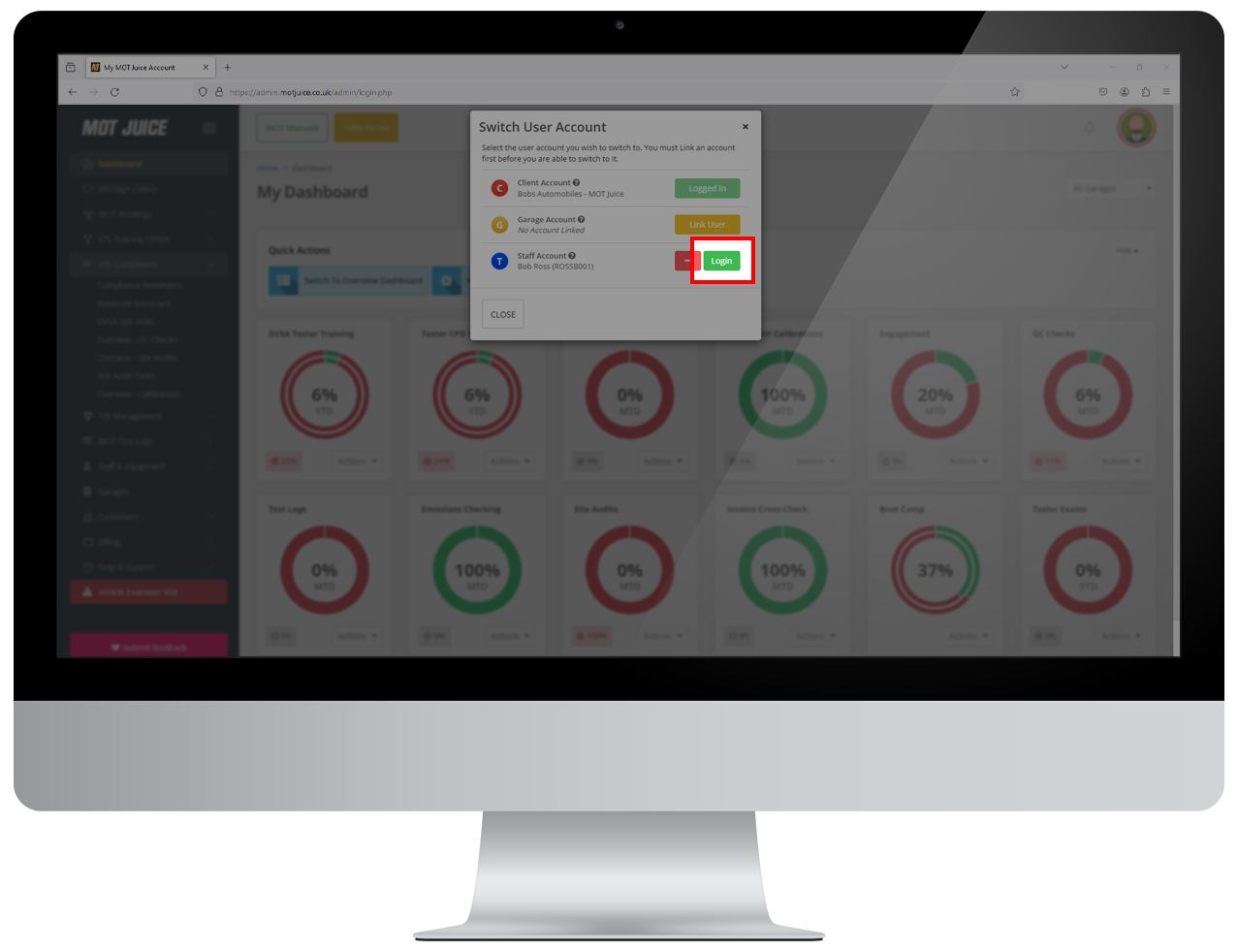
Now that your accounts are linked, you can easily switch to other accounts via the Switch user Account menu. Just find the account you want to access and click the green 'Login' button and you'll be taken to the dashboard for that linked users account.
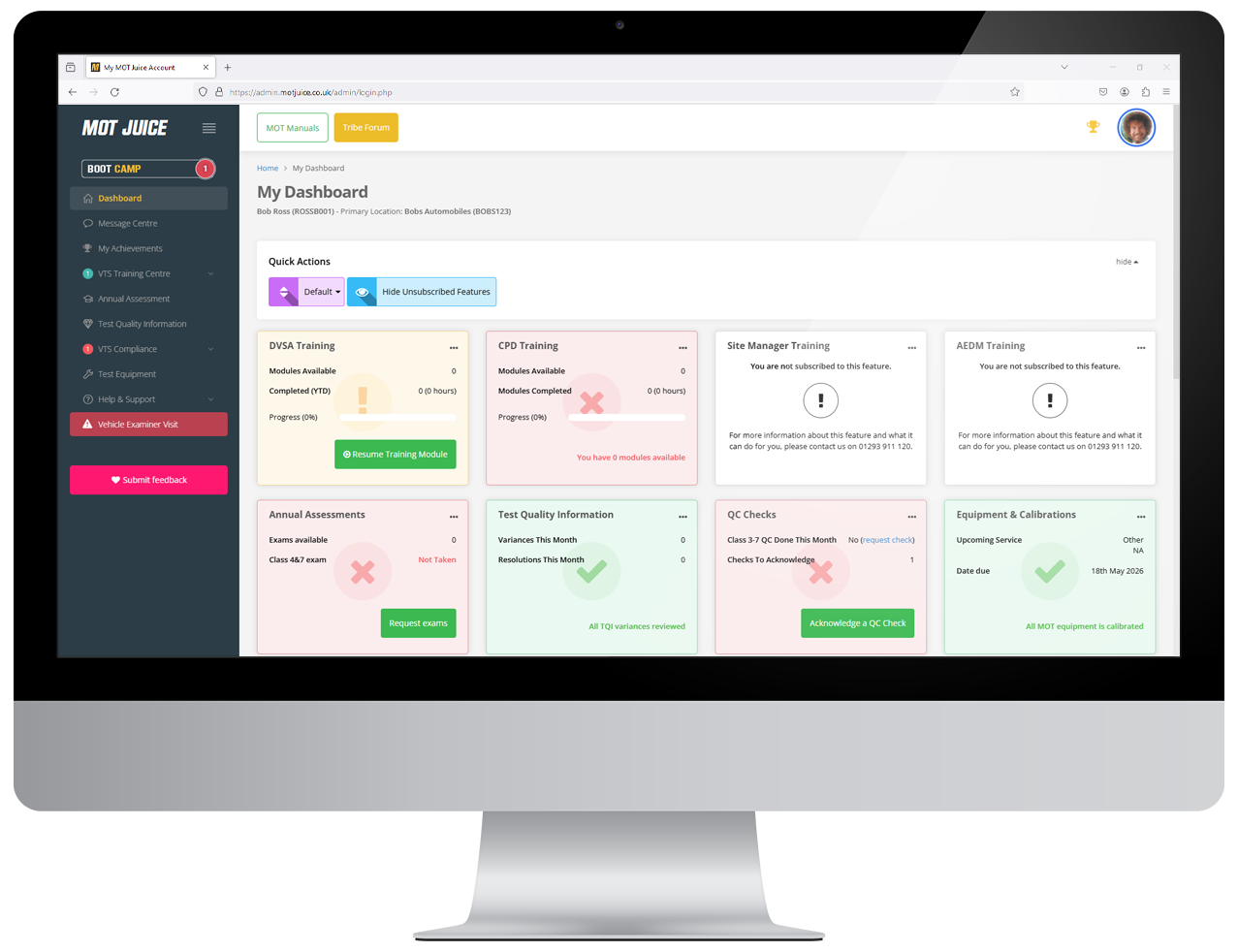
That's it! Your accounts are now linked and you can quickly switch between them, only having to remember the login details for 1 of them. You can unlink accounts at any time using the red minus button next to the green 'Login' button in the account switcher window.